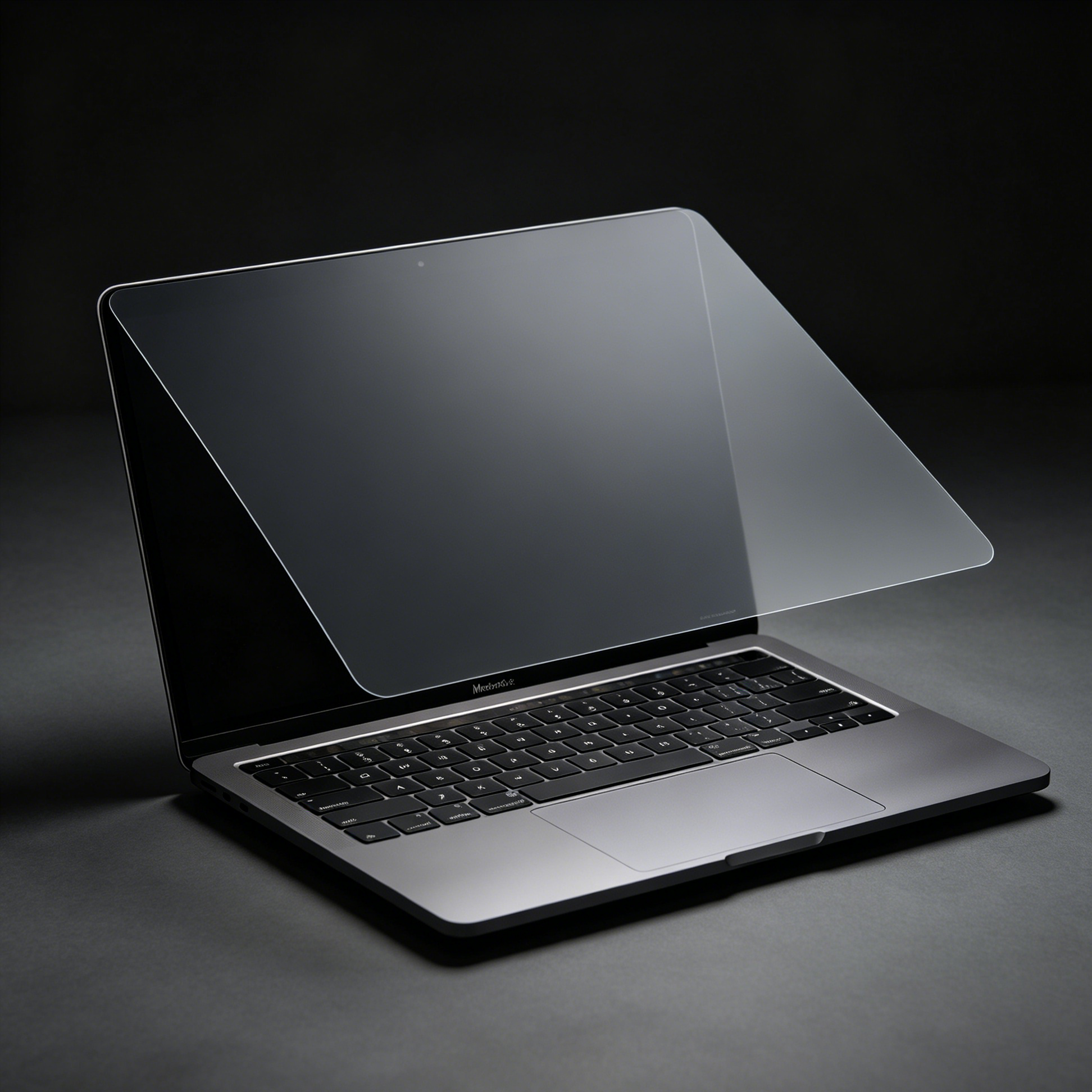
The filter is fitted, the screen is readable, and the workday is over. Then the lid stops a little short of its usual closed position. It is tempting to press it down, especially when you are trying to get the laptop into a sleeve. Pause there and check the filter's instructions.
The magnetic privacy screen for MacBook Air 15 in the LUSA DESIGN store carries a specific note: the laptop will not close completely with the filter attached, although the listing says sleep mode remains supported. That makes removal before packing a sensible part of using this particular product.
A display going dark does not tell you whether there is enough space for an accessory between the lid and the keyboard. Closing behavior and sleep behavior should be assessed separately, following the laptop's and filter's instructions.
Before fitting the filter, note how the clean, unobstructed laptop closes normally. After fitting it, do not push past an unexpected resistance or try to squeeze away a visible gap. A tight sleeve or packed bag should not be used to force the lid into place either.

Save your work and use the normal power or sleep controls as appropriate. With the laptop supported on a table, remove the detachable filter using the method supplied with it. Support the sheet and avoid a sharp fold as the attachment releases.
Check that the screen and keyboard area are clear before closing the laptop. Put the filter in a suitable flat holder and carry it where plugs, keys, or a heavy object will not press into it. Follow the product-specific guidance for any mounting component that is intended to remain on the computer.
This routine is especially useful when moving between meetings. Taking the filter off deliberately is easier than discovering the extra gap after the laptop is already halfway into a narrow bag compartment.
The product note does not mean every unusual fit should be ignored. Make sure the filter is the intended version, aligned correctly, and free of trapped debris. If it sits unevenly or a corner remains raised, stop and ask for fitting advice.
The linked listing identifies MacBook Air 15.3-inch models A2941, A3114, and A3241. Confirm your own model against the current compatibility details. Do not substitute a similarly named MacBook Pro filter or assume a different generation has the same fit.
If you close the laptop repeatedly between short tasks, consider whether removing and refitting this style of filter suits you. If you mainly work at a desk and pack up once a day, that extra step may be easy to accommodate.
The value of a magnetic filter is its ability to come off when the task changes. Treat the lid-clearance note as part of the product choice, alongside viewing privacy and device fit. Read the MacBook Air 15 filter details before ordering so that the way you pack the laptop matches the way the accessory is designed to be used.